Overview
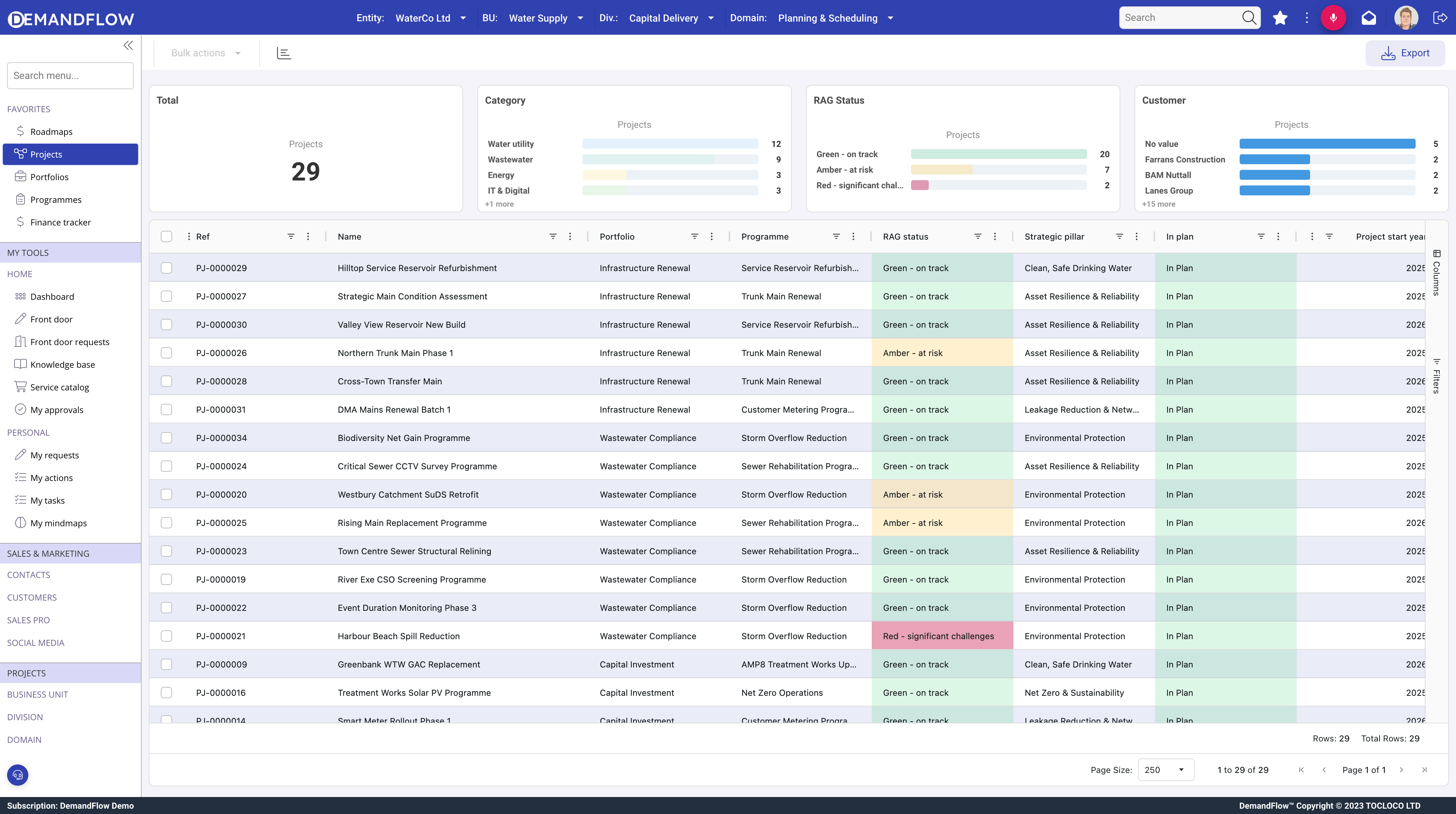
In DemandFlow, an entity is the fundamental building block for organising and managing your business data. Every record you create, view, or edit in DemandFlow belongs to an entity type. Examples include Projects, Clients, Risks, Actions, and many more.
Think of an entity type as a blueprint. It defines what information can be captured, how it is displayed, and how records of that type relate to one another. Each individual record (such as a specific project or a particular client) is an instance of its entity type.
How Entities Work
Every entity type in DemandFlow is governed by a definition. The definition is a structured configuration that controls:
- What data fields appear — the forms, dropdowns, date pickers, and other inputs your users interact with
- How the record is laid out — which panels (tabs) are shown, how columns divide the screen, and what sections appear within each column
- What related information is displayed — related records, file attachments, activity timelines, dashboards, maps, and more
- What actions are available — toolbar buttons that trigger specific operations on the record
- How records appear in lists — which columns are visible in grid views and what bulk actions are available
The Structure of an Entity Definition
An entity definition follows a clear hierarchical structure. Understanding this hierarchy is key to configuring entities effectively:
Top-Level Properties
At the highest level, a definition includes metadata about the entity type itself:
| Property | Description |
|---|---|
| Name | The singular display name shown in the interface (e.g. "Project") |
| Plural | The plural form used in lists and navigation (e.g. "Projects") |
| Menu Item | The identifier used for navigation and URL routing |
| Icon | The icon displayed alongside the entity in menus and headers |
| Level | A numeric value that controls the ordering of entity types in menus |
Additional optional properties include:
| Property | Description |
|---|---|
| Bulk Actions | When enabled, allows users to select multiple records in a list and perform actions on them simultaneously |
| Object Toolbar | An array of action buttons that appear in the record's toolbar when viewing or editing |
| View Options | Alternative ways to view the entity's list, such as map view, timeline view, or Kanban board |
The Definition Hierarchy
Below the top-level properties, the definition contains a definition array that describes the record layout. This hierarchy has four levels:
1. Panels (Tabs)
Panels are the top-level organisational unit within a record. Each panel appears as an icon tab along the left side of the record view. A panel has:
- A name displayed on the tab
- An icon shown alongside the tab name
- Optional visibility conditions that show or hide the panel based on field values
Common panel examples include "General", "Details", "Documents", "Activity", and "Dashboard".
2. Columns
Each panel is divided into one or more columns. Columns split the panel horizontally and each has a width expressed as a percentage. For example, a panel might have two columns each at 50% width, or three columns at 33%, 34%, and 33%.
3. Rows
Within each column, rows stack vertically. Each row has a type that determines what kind of content it displays. This is where the real power of entity configuration lies. Row types include forms, related record lists, file attachments, dashboards, maps, activity timelines, and many more.
Each row type is covered in detail in the Row Types Reference category.
4. Fields (within Form Rows)
When a row's type is Form, it contains an array of fields. Each field defines an individual data input such as a text box, dropdown, date picker, or user selector. Fields have their own extensive set of configuration options.
Each field type is covered in detail in the Field Types Reference category.
Creating and Editing Records
When you open a record in DemandFlow, the system reads the entity's definition and dynamically builds the interface. This means:
- Changes to a definition immediately affect how all records of that type are displayed
- New fields, panels, or sections can be added without any code changes
- The same record data can be presented differently by modifying the definition
To create a new record, navigate to the entity's list view and use the New button in the toolbar. To edit an existing record, click on it in the list to open the record editor.
Visibility Conditions
Both panels and rows can have visibility conditions that control when they are shown or hidden. A visibility condition references another field's value. For example, you might configure a "Closure Details" panel to only appear when the Status field is set to "Closed".
This allows you to create dynamic, context-sensitive forms that only show relevant information based on the current state of the record.
Toolbar Actions
Entity definitions can include toolbar actions — buttons that appear at the top of the record editor. These can trigger custom operations such as generating reports, running analyses, changing status, or integrating with external systems. Toolbar actions can be restricted to specific user profiles, ensuring that only authorised users can perform sensitive operations.
Next Steps
To learn more about the specific building blocks available for entity configuration, explore the following reference categories:
- Row Types Reference — detailed documentation for each type of row that can appear within a panel column
- Field Types Reference — detailed documentation for each type of field available within form rows