Each IT asset in DemandFlow represents a single physical device. This article covers how to create a new asset record and populate the core fields on the General panel.
Creating a new asset
Navigate to ITAM > IT assets in the sidebar. Click New in the toolbar to open a blank asset record. The General panel is displayed first, organised into three columns.
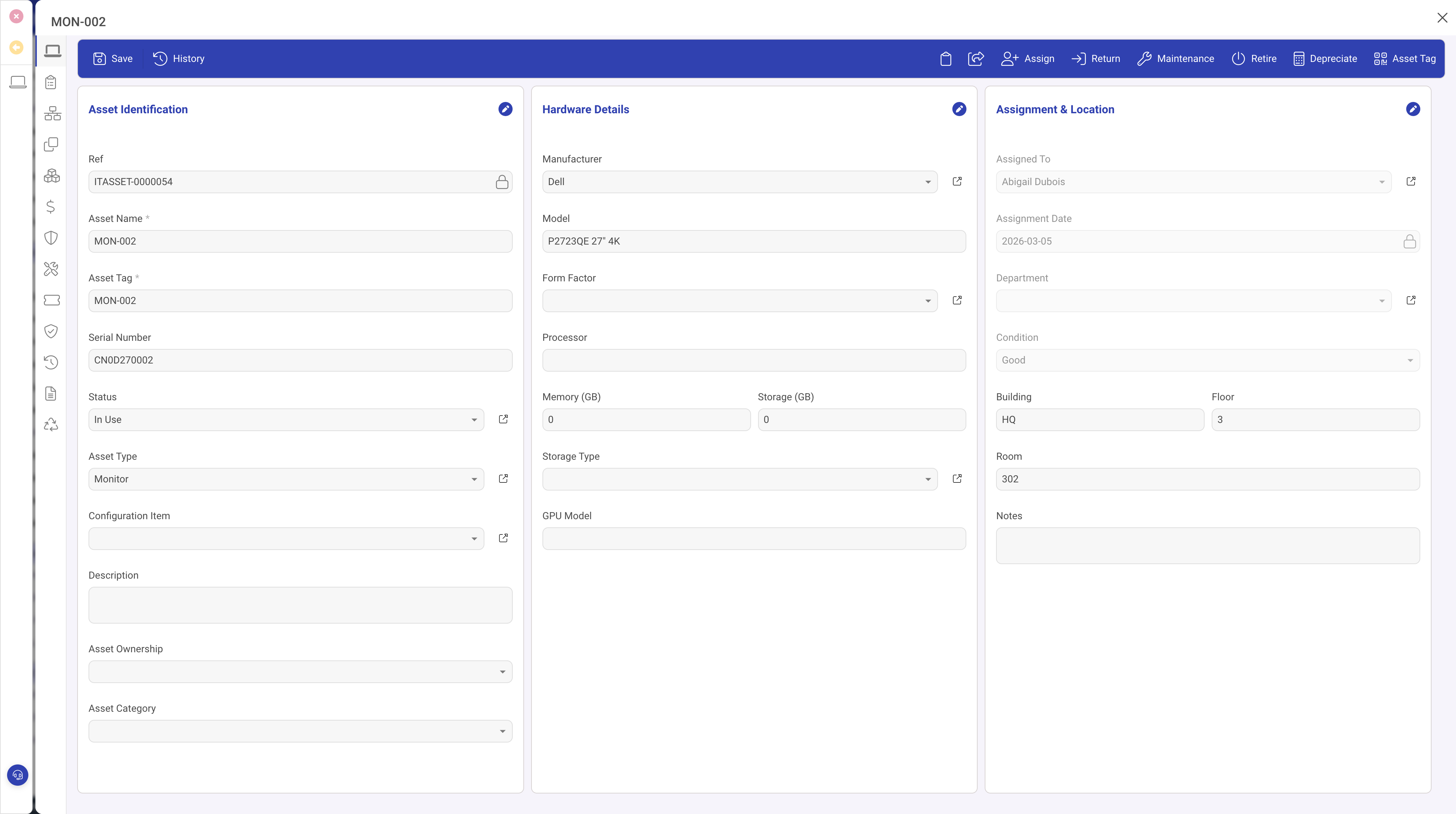
Column 1: Asset Identification
- Name: a descriptive label for the asset (e.g. "Finance Laptop 014").
- Asset Tag: a unique tracking label, typically matching a physical sticker or barcode on the device.
- Serial Number: the manufacturer's serial number.
- Barcode: an optional barcode value for scanning.
- Status: select from IT Asset Statuses. This controls what actions are available. See Setting up ITAM reference data for how status rules work.
- Asset Type: select from IT Asset Types to categorise the device.
- Config Item: optionally link to a Configuration Item in the CMDB module.
Column 2: Hardware Details
- Manufacturer: a vendor lookup (e.g. Dell, Lenovo, Apple).
- Model: the specific model name or number.
- Form Factor: select from Form Factors if relevant.
- Processor: CPU model (e.g. "Intel Core i7-1365U").
- Processor Cores: number of CPU cores.
- Memory (GB): installed RAM.
- Storage (GB): total storage capacity.
- Storage Type: select from Storage Types.
- GPU: graphics processor, if applicable.
- Screen Size: display size in inches.
- Battery Health: current battery health percentage.
Column 3: Assignment and Location
- Assigned To: the user currently responsible for the asset.
- Department: the department the asset belongs to.
- Location, Building, Floor, Room: where the asset is physically situated.
You can populate assignment fields here directly, but for proper audit trails use the Assign toolbar action instead. See Assigning assets to staff.
Beyond the General panel
IT asset records have 13 panels in total, covering financials, warranty, maintenance, software, network, lifecycle, assignment history, and more. These are covered in dedicated articles.
Toolbar actions
- Assign and Return: manage user assignment with audit trail.
- Maintenance: log a maintenance event.
- Retire: move the asset to end-of-life status.
- Depreciate: run depreciation calculation.
- Asset Tag: generate a printable asset tag label.
Bulk actions from the grid: Bulk Assign, Bulk Retire, and Bulk Depreciate.
Tips
- Always record the asset tag and serial number for physical audits and support queries.
- If you use the CMDB module, link each asset to its configuration item.
- Adopt a consistent naming convention so assets are easy to find in the grid.