Overview
DemandFlow allows you to add custom action buttons to entity records and provide bulk actions that operate across multiple selected records. These features extend the standard create/edit/delete operations with domain-specific functionality tailored to your business processes.
Toolbar Actions
Toolbar actions appear as buttons in the toolbar at the top of the record editor. When a user clicks a toolbar button, it triggers a specific operation on the current record.
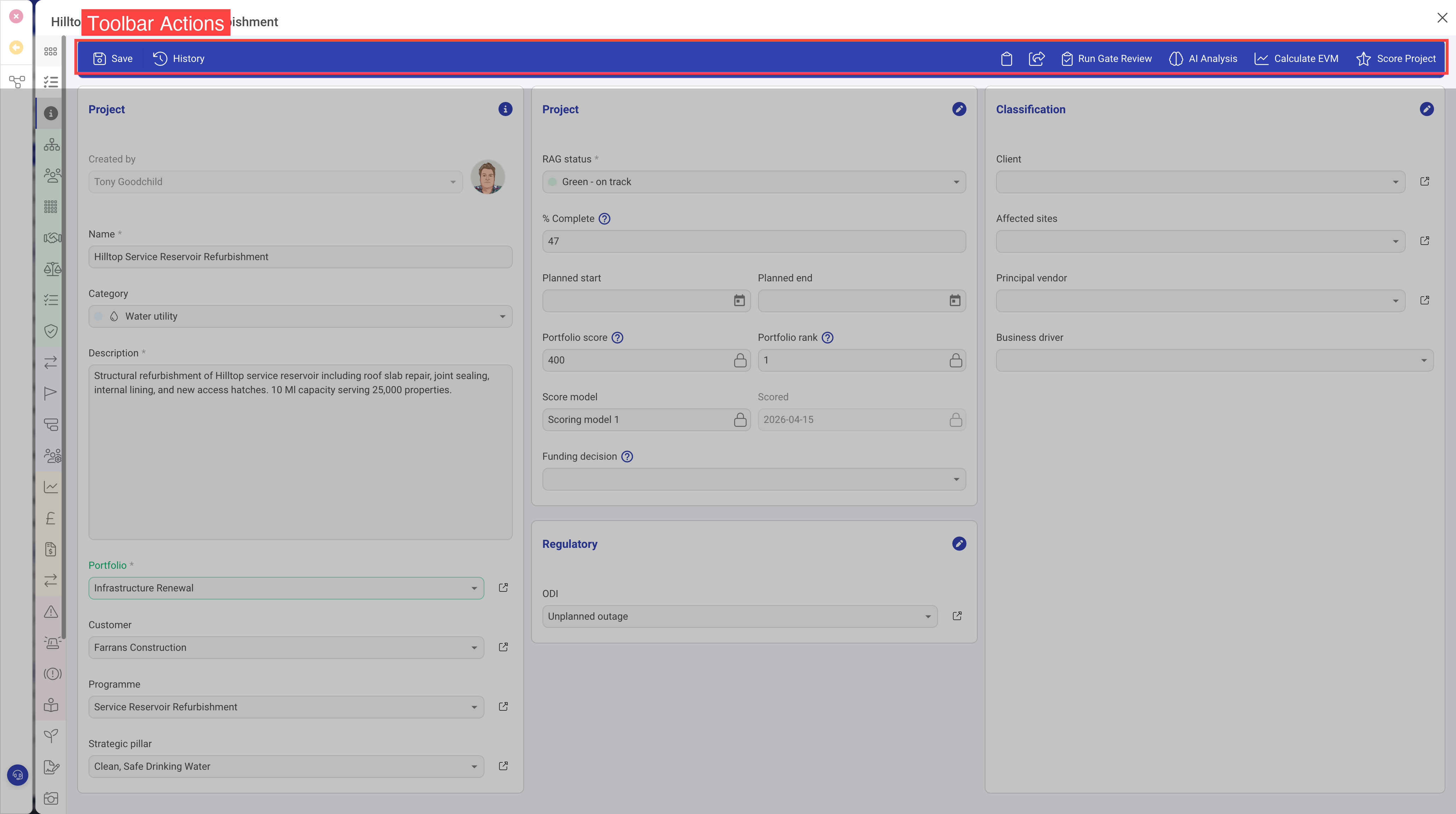
Toolbar Action Properties
| Property | Required | Description |
|---|---|---|
| ID | Yes | A unique identifier for the action |
| Text | Yes | The label displayed on the button |
| Icon | Yes | The icon displayed on the button, from the Font Awesome icon library |
| Function | Yes | The operation that is executed when the button is clicked |
| Profiles | No | An array of user profile names that are allowed to see and use this button. When omitted, the button is available to all users. |
Profile-Based Access Control
The Profiles property is an important security feature. By specifying one or more profile names, you can restrict sensitive operations to authorised users only. For example:
- An "Approve" button might be restricted to users with the "manager" profile
- A "Generate Report" button might be available to both "analyst" and "manager" profiles
- A "Delete All Data" button might be restricted to the "admin" profile only
Users who do not have a matching profile will not see the button at all, providing a clean and uncluttered interface.
Bulk Actions
Bulk actions allow users to select multiple records from a list view and perform an operation on all of them simultaneously. This is particularly useful for batch operations such as changing the status of many records, assigning records to a user, or exporting data.
Enabling Bulk Actions
To enable bulk actions on an entity, set the Bulk Actions property to true in the entity definition. When enabled, checkboxes appear alongside each record in the list view, and a bulk action toolbar becomes available when one or more records are selected.
Bulk Action Definitions
The available bulk actions are defined in the Bulk Actions Definition array. Each bulk action has similar properties to toolbar actions, including an ID, display text, icon, and the function to execute. Bulk actions receive the full set of selected records, allowing them to process multiple items in a single operation.
Common Uses
Here are some common examples of toolbar and bulk actions in practice:
| Action Type | Example | Description |
|---|---|---|
| Toolbar | Generate PDF Report | Creates a downloadable report from the current record's data |
| Toolbar | Run AI Analysis | Submits the record for automated analysis and stores the results |
| Toolbar | Clone Record | Creates a copy of the current record with a new identifier |
| Toolbar | Change Status | Advances the record through a workflow (e.g. Draft to Published) |
| Bulk | Assign Owner | Sets the owner field on all selected records to a chosen user |
| Bulk | Update Status | Changes the status of all selected records simultaneously |
| Bulk | Export to CSV | Downloads the selected records as a spreadsheet file |