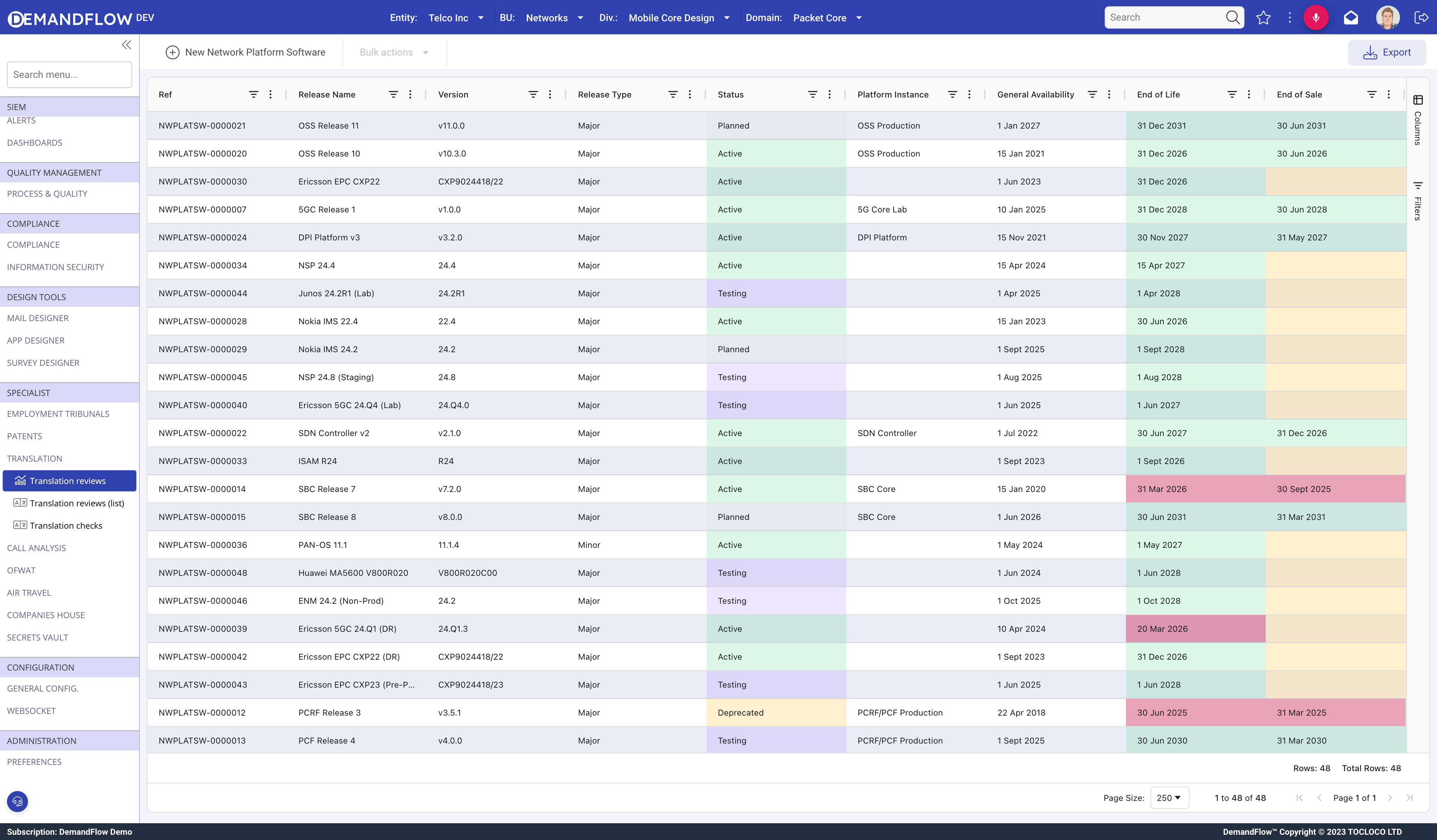
Software version records track the releases running on each deployed platform instance. Each record captures version number, lifecycle dates, prerequisites, and full release management details.
Creating a software version
- Navigate to Telecom platforms > Software versions.
- Click New Network Platform Software.
- Enter a Name (e.g. "Ericsson 5GC Release 2") and Version (e.g. "v2.1.0").
- Type: Major, Minor, Patch, Hotfix, or Emergency Fix.
- Status: Planned, Testing, Active, Deprecated, EOL, or Retired.
- Platform Instance (required): the instance this version runs on.
- Save.
Lifecycle dates
- General Availability (GA): when the version was released.
- End of Life: when the vendor stops all updates.
- End of Sale: when the vendor stops selling this version.
- End of Support: when the vendor stops patches and support.
All dates are flagged when they pass, so overdue items are visually highlighted.
Prerequisites
The prerequisites field is a multi-select lookup to other software version records. This captures version dependency chains: a patch may require a specific minor version to be installed first.
The Release panel
A comprehensive release management panel covering:
- Plan: planned and actual deployment dates, rollback availability.
- Change and impact: new features, bug fixes, security patches, impacted services, risk level, approval status.
- Testing and validation: test status, coverage, UAT, sign-off, performance metrics.
- Compliance and audit: regulatory check, audit references.
- Deployment details: release notes, script location, config changes.
- Post-deployment monitoring: status, feedback, issues.
The EOL Roadmap
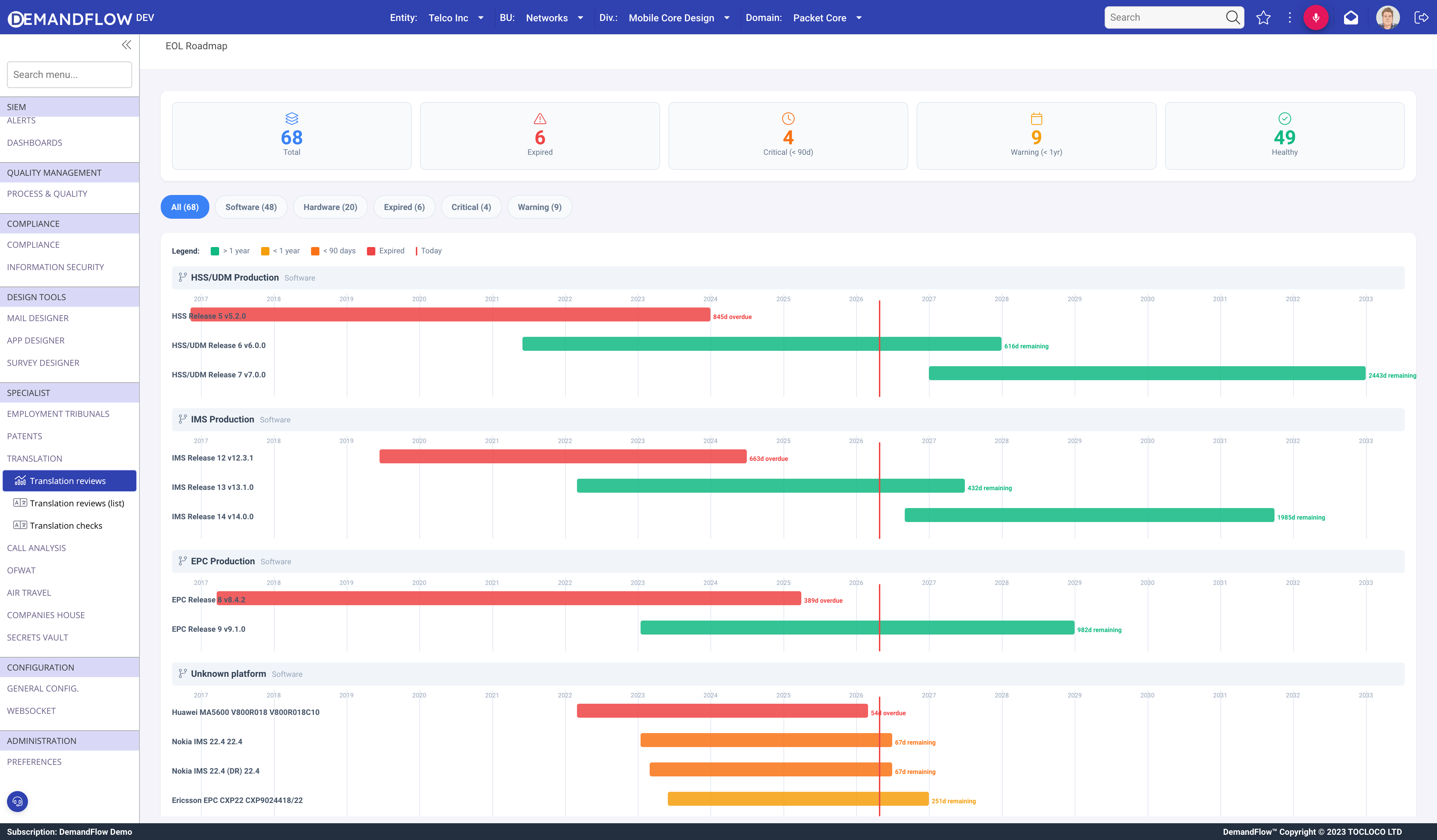
The EOL Roadmap (Telecom platforms > EOL roadmap) shows all software and hardware versions across all platforms on a single timeline view:
- Summary cards: total versions, expired, critical (past EOL), warning (within 1 year), healthy.
- Filter tabs: All, Software, Hardware, Expired, Critical, Warning.
- Gantt bars grouped by platform, colour-coded: green (more than 1 year remaining), blue (less than 1 year), amber (less than 90 days), red (expired).
- Each bar shows "overdue" or "remaining" labels.
Use this view to plan upgrade schedules and identify platforms running expired software before they become a compliance or security risk.