DemandFlow opens records, editors and forms as stack objects that slide in from the right-hand side of the screen. You can open as many as you need, and they stack on top of one another rather than replacing what you were just looking at. A small stack dock on the left-hand edge keeps track of every open stack object and lets you switch between them, hide them all or close everything in one click.
This article covers everything you need to know to work with the stack fluently.
Opening one
Almost every click that drills into a record opens a stack object. Click a row in a grid, a record name in a list or a relatedlist row on another stack object, and a panel slides in from the right.
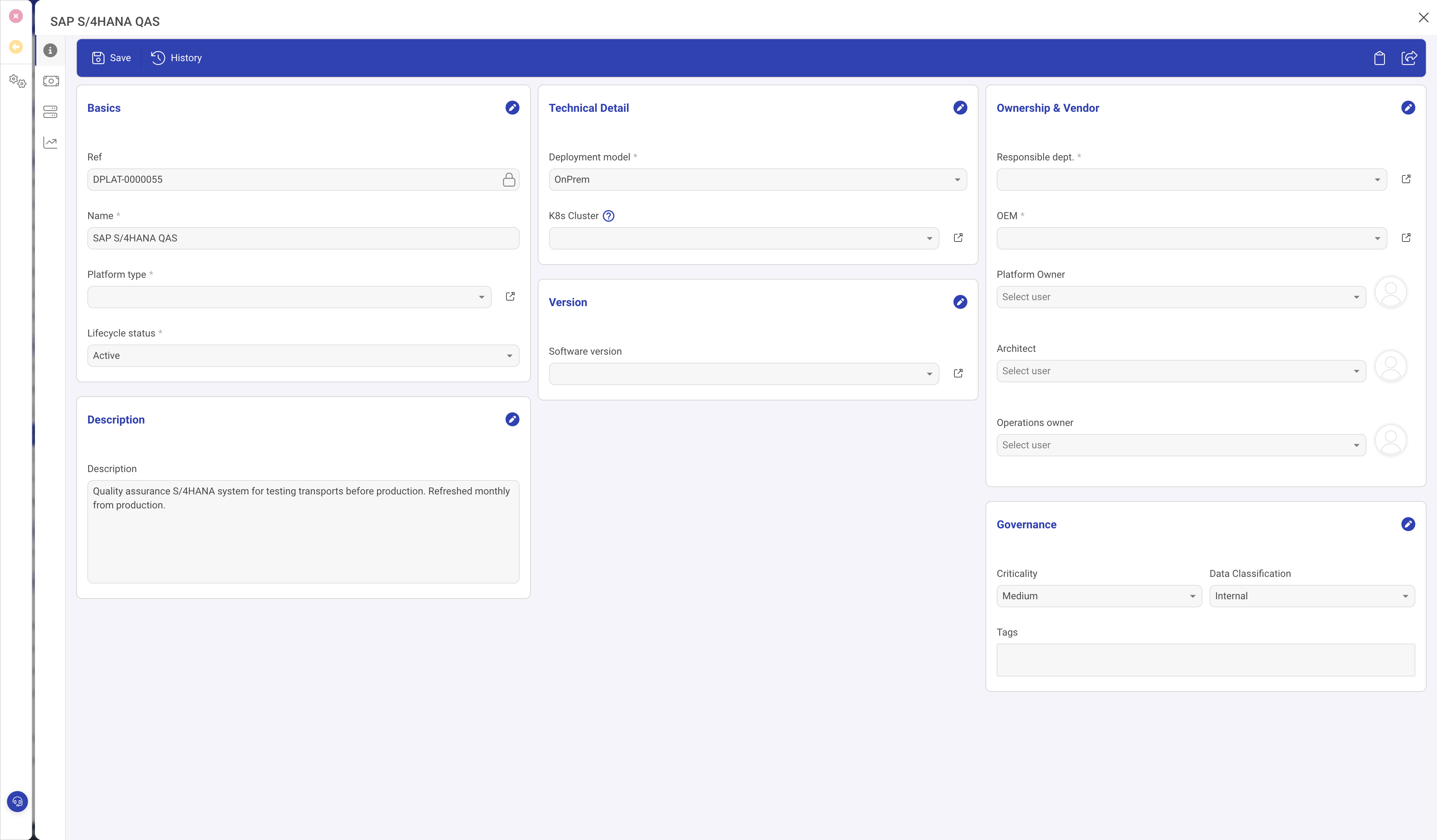
Each stack object takes most of the screen width and has its own header, tabs down the left-hand side, an action toolbar at the top (Save, History and so on), and a close icon in the top-right. The background darkens slightly to show the stack object is in focus.
Stacking more than one
You do not need to close the first stack object before opening another. If you pick a linked record, navigate to a different sidebar item or open a child record from a relatedlist, a second stack object slides in on top of the first. Both stack objects stay open and your place in the first is preserved.
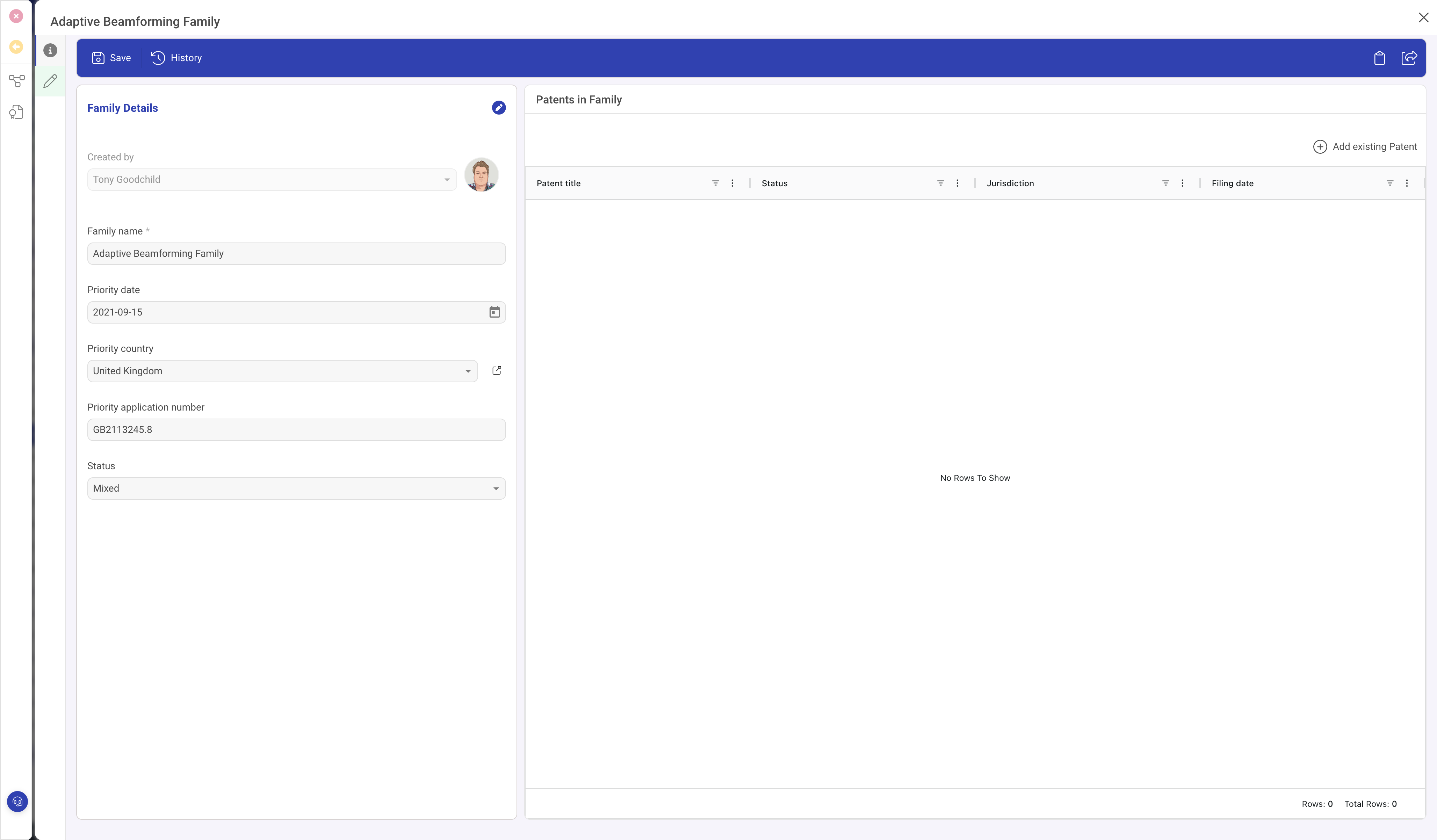
You can keep stacking without limit. DemandFlow is designed to handle the deep navigation paths that real work requires, so you never have to remember where you were or retrace your steps just because a sub-record caught your attention.
The stack dock
Whenever one or more stack objects are open, a narrow dock appears on the left-hand edge of the screen with a small icon for every open stack object, plus two global actions at the top. Move your cursor to the left edge of the screen to bring it in.
Each icon in the dock represents:
- Close (red, top icon): closes every stack object currently on the stack.
- Hide (amber, second): hides every stack object from view but keeps them alive, so you can carry on in the background and bring them back later.
- One icon per open stack object: newest on top. Hover any icon to see the record's entity and name as a tooltip.
Switching between them
Click any icon in the dock to bring that stack object to the front. The stack itself does not change: all your other stack objects stay open behind it. This is how you jump back and forth between the record you are editing and something you opened to refer to without losing either one.
The topmost icon (just under Close and Hide) is whatever stack object is in focus right now. Older stack objects sit below it in reverse chronological order, so the dock acts like a breadcrumb trail through your current train of thought.
Hiding everything
Sometimes you need a clean background for a moment: for example, to copy text from a grid behind the stack, to scroll through the main app, or to take a screenshot. Click the amber Hide icon at the top of the dock and every stack object slides off to the right at once. Nothing is lost; the dock icons stay where they are. Click any of them and everything slides back into place exactly where it was.
Closing one
Two ways:
- Click the X icon in the top-right corner of the stack object's header.
- Click the Cancel button at the bottom of any stack object that offers one.
Either way, just that stack object closes. The next one in the stack comes to the front automatically. Nothing else is disturbed.
Closing everything
When you are done with a whole chain of work, click the red Close icon at the top of the dock. Every stack object in the stack closes in sequence and the dock disappears. Use this whenever you want a clean slate.
Tips for fluid navigation
- Don't be shy about opening sub-records. The stack is designed for deep navigation. You can always come back to where you were.
- Use Hide rather than Close when you need the background briefly. It keeps your train of thought intact.
- If you lose track of what is open, hover over each icon in the dock. The tooltip tells you which stack object it is.
- The stack is session-scoped. Reloading the browser or logging out closes everything; there is no persistent "resume where I left off".