When a rule fires, DemandFlow creates an alert record and hands it to the integration flow for notification. The alert itself stays in DemandFlow as a working record: something to assign, investigate and close.
Open the Alerts screen
Go to SIEM > Alerts.
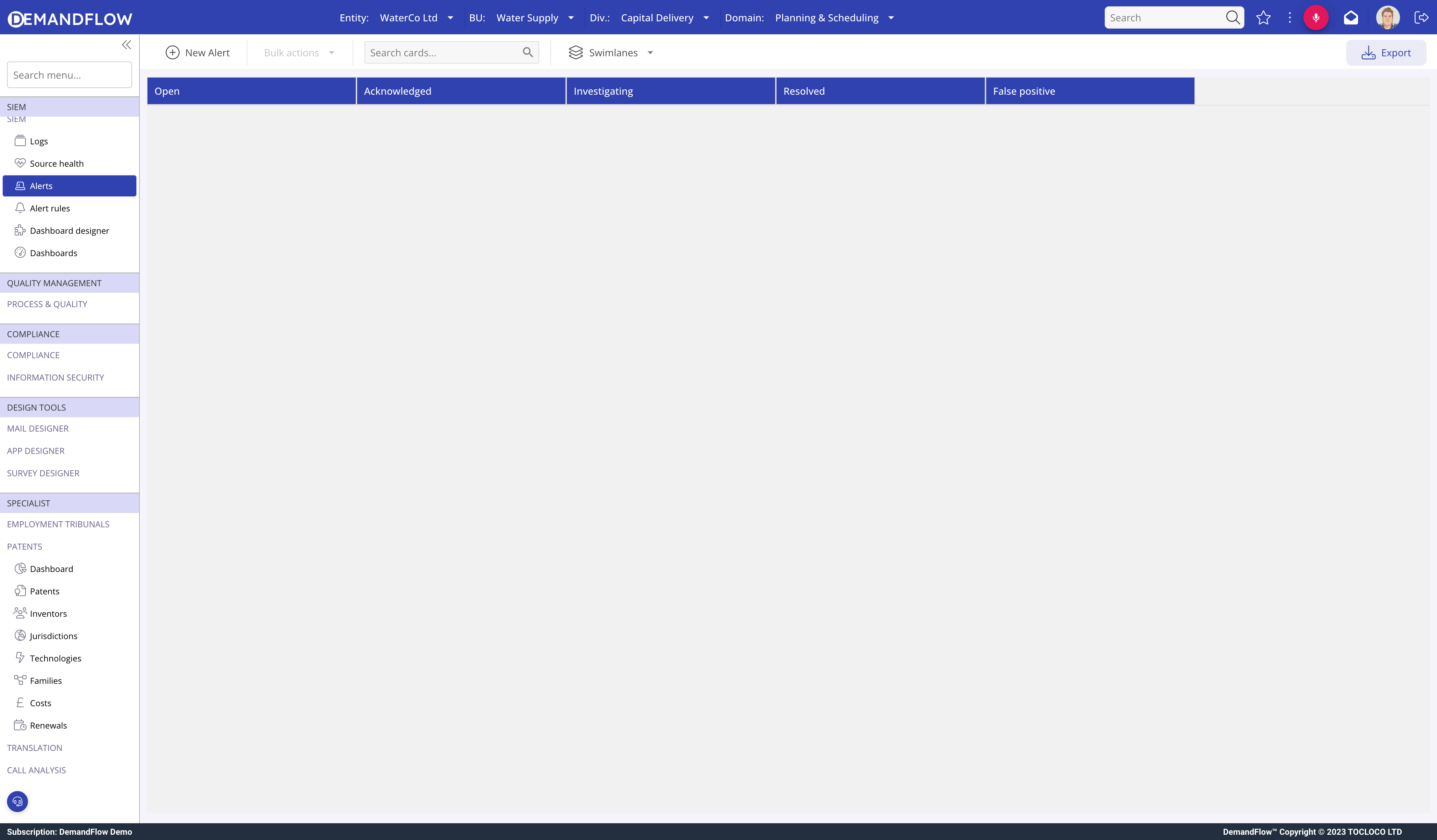
Each alert shows its triggering rule, severity, summary, status and timestamps. Filter by status to work a specific queue.
The triage workflow
Alerts move through four statuses:
- Open: default state when an alert is created. Nobody has picked it up yet.
- Acknowledged: someone has claimed it and is about to start working on it.
- Investigating: active investigation in progress.
- Resolved: the issue has been dealt with.
- False Positive: the alert fired but no action was needed; the rule might need tightening.
Move alerts forward as work happens. The status history is preserved so you can look back at how long triage took.
Investigate
Open an alert to see the detail. Two panels matter most:
- Summary: the rule name, the severity, a human-readable one-liner describing what fired.
- Sample events: up to ten log events that matched the rule condition, with a Jump to events action that opens the Logs screen pre-filtered to the same window and source.
Use the sample events as your starting point for investigation. Follow the user, host or action back through the Logs screen to see what else was happening around the same time.
Close
- Once the issue is resolved (or confirmed to be a false positive), add a short note in the activity timeline explaining the outcome.
- Set the status to Resolved or False Positive.
- Save.
Changing status on a closed alert does not re-send the notification. The notification fires once, on creation, via the rule's integration flow.
Tuning from alerts
If a rule produces too many false positives, loop back to the rule and either tighten the condition, raise the threshold, or narrow the scope. Look at the false-positive count per rule as a simple first-pass health metric.
If you want the notification to include more context (links to related DemandFlow records, deep links into dashboards), change the integration flow rather than the rule: rules stay decoupled from notification transport on purpose.
Tips
- Use the Acknowledged state deliberately: it tells colleagues that someone is on it, preventing duplicate work.
- Keep Resolved and False Positive distinct. A false positive means the rule was wrong; a resolved alert means the rule was right.
- Review the False Positive pile weekly and tune the noisy rules.
What to do next
To get notifications delivered into Slack or email, see Using integration flows for SIEM notifications.