Alert rules define the conditions under which DemandFlow SIEM generates alerts from ingested log events. Each rule targets a specific scope of sources, evaluates incoming events against its criteria, and creates an alert when those criteria are met.
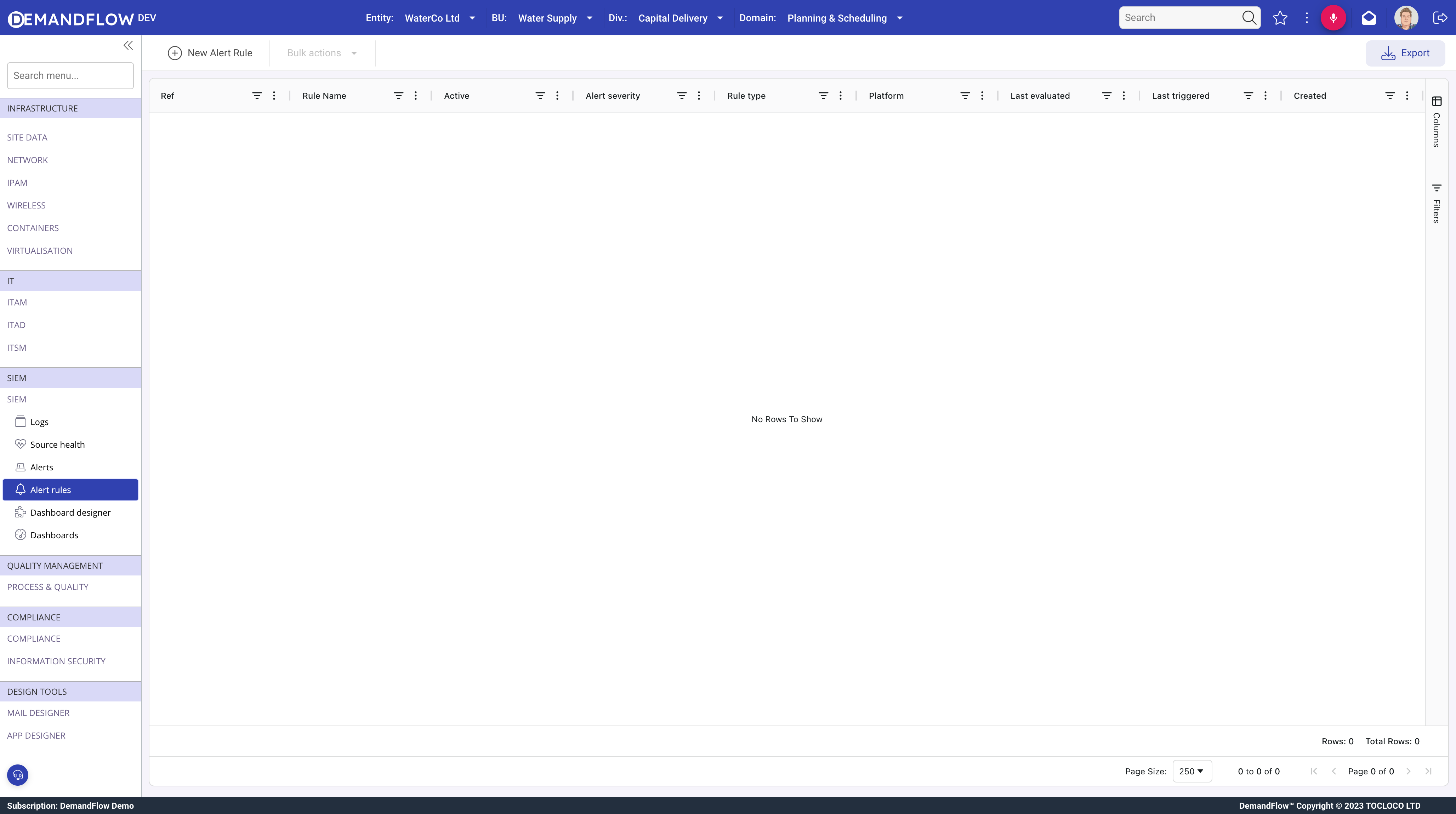
Navigate to SIEM > Alert rules and click New Alert Rule to create a rule.
Rule types
Three rule types are available, each suited to a different class of detection:
- Threshold: fires when a count of matching events exceeds a limit within a rolling time window.
- Pattern Match: fires immediately when a single event matches a field condition.
- Absence: fires when expected events stop arriving for a configured period.
Scope
Every rule must be scoped to determine which events it evaluates.
Sources
Pick one or more specific log sources. If you need the rule to apply to just the authentication service or just the firewall, select those sources explicitly.
Platform scoping
When a Platform is set, the rule automatically applies to every LOGSOURCE associated with that platform. This includes sources added to the platform in the future. When you onboard a new source, just link it to a platform and existing rules pick it up automatically without any rule changes.
Combining Platform and Sources
You can set both a Platform and specific Sources on the same rule. The two lists are unioned, not intersected. For example, a rule scoped to Platform "Production" plus Source "Legacy Auth" covers all production sources AND the legacy auth source, even if that source is not on the production platform.
Leaving both Sources and Platform empty applies the rule to every source in the tenant. This is usually too broad and leads to noise.
Severity filter
Rules have an optional multi-select Severity filter field. When set, the rule only considers events whose severity matches one of the selected values. Leave this empty to evaluate events at every severity level.
This is separate from the Alert severity field on the rule. The severity filter controls which inbound events are eligible for evaluation. The alert severity controls what gets stamped on the alert when the rule fires.
Threshold rules
Threshold rules count matching events over a rolling window and fire when the count exceeds a limit.
Configuration fields
- Field to count (
thresholdField): optional. A field name to match against, such asaction,outcome, orraw.errorCode. Leave empty to count every event that falls within scope. - Threshold value (
thresholdValue): required if a field is set. Case-insensitive substring match against the field value. - Trigger when count exceeds (
thresholdCount): the rule fires when the count is greater than this number. Default is 5. - Window (mins) (
thresholdWindowMinutes): the rolling window in minutes, from 1 to 1440. Default is 5. - Group by (
thresholdGroupBy): optional. Choices: no grouping (single global counter), per host, per user, per action, or per source. When set, each unique value of the chosen field gets its own independent counter.
Example: detecting brute-force login attempts
To detect brute-force login attempts against individual user accounts:
- Field to count:
action - Threshold value:
login - Severity filter: select only
warn(to catch failed logins, which your source marks as warn) - Trigger when count exceeds:
10 - Window:
5minutes - Group by:
per user
This fires when more than 10 warning-severity login events appear within 5 minutes for the same user. It catches individual users being brute-forced without triggering when 10 different users each fail once.
Without grouping, the rule would fire once when the total across all users crosses 10. With grouping by user, each user has their own independent counter.
Pattern Match rules
Pattern Match rules fire on a single matching event. There is no counting and no time window. One match is enough.
Configuration fields
- Field to match (
patternField): the field to match against. This can be a top-level envelope field such asmessage,action, oruser, or a dotted path into the raw payload such asraw.errorCode. - Match value (
patternValue): case-insensitive substring match. Any single matching event creates an alert (subject to cooldown).
Cooldown is especially important for Pattern Match rules. Without a cooldown, a sustained condition (such as a misconfigured service logging the same error every second) produces one alert per matching event. Start with a cooldown of at least 60 minutes and adjust from there.
If you need a count before alerting, use a Threshold rule with a field filter instead.
Absence rules
Absence rules detect when expected events stop arriving. They are the inverse of the other two types: they fire on silence, not activity.
Source heartbeat mode (default)
By default, Use each source's own heartbeat is set to Yes. In this mode, the rule reads each LOGSOURCE object's heartbeatIntervalMinutes value. The rule fires per source if the time since that source's last event exceeds its configured heartbeat.
This means a single absence rule can cover every source in scope without you needing to know each source's expected cadence. A source that sends logs every minute will alert after a few minutes of silence, while a source that sends logs once an hour will wait accordingly.
Sources with heartbeatIntervalMinutes set to 0 are skipped. You cannot fire on silence for a source that has no expected cadence.
Fixed window mode
When Use each source's own heartbeat is set to No, the rule uses Override window (mins) as a fixed window. If no events arrive from any in-scope source within this window, the rule fires.
Combining both
When source heartbeat mode is enabled and an override window is also set, the override acts as a global maximum ceiling. Whichever value is shorter wins: the source's own heartbeat or the override window. This is useful as a safety net, for example: "no source should go quiet for more than 60 minutes regardless of its own heartbeat configuration".
Cooldown
The Cooldown (mins) field controls how long the rule waits after firing before it can fire again. During cooldown, matching events are still evaluated but do not produce new alerts.
Cooldown prevents alert flooding. For Threshold rules, 15 to 30 minutes is usually sufficient. For Pattern Match rules, start at 60 minutes because every single matching event would otherwise generate its own alert. For Absence rules, match the cooldown to the heartbeat interval so you do not get repeated "still silent" alerts.
Auto-close
The Auto-close on clear field controls whether Open alerts from this rule are automatically resolved when the triggering condition is no longer true.
When set to Yes, the rule evaluator periodically checks whether the condition that created each Open alert still holds. If the condition has cleared, the alert is moved to Resolved automatically. This is useful for transient conditions so operators do not have to manually clean up the alert inbox.
Grace period
The Auto-close grace (mins) field sets the minimum age of an Open alert before it becomes eligible for auto-close. The default is 15 minutes.
The grace period prevents flapping. If a condition clears and then re-triggers within the grace window, the same alert stays Open rather than being closed and immediately reopened as a new alert.
Notification
Rules can notify people and systems when an alert fires.
- Notify users: select DemandFlow users to notify in-app and via their default email address when the rule fires.
- Integration flow: select an Integration Flow that will be triggered with the alert payload. The flow handles delivery to external channels such as Slack, Teams, email, or webhooks. This keeps rules decoupled from notification transport, so you can change where alerts are delivered without editing every rule.
See Using integration flows for SIEM notifications for details on building and wiring up notification flows.
Testing and iteration
- Save the rule with Active set to Yes.
- Trigger a matching event from your source system (a failed login, a banned keyword, a pause in heartbeats depending on rule type).
- Check the Alerts screen for a new entry.
- If using a notification flow, check the target channel for the message.
Tips for building a useful rule library
- Start specific. A rule that catches exactly one real signal is better than three overlapping rules that blur the response.
- Always set a cooldown. Rules without cooldown will spam the channel in any real incident.
- Group threshold rules by host or user when the signal is per-entity. One compromised host triggering the alert is signal; a hundred hosts triggering one each is noise.
- Use absence rules for every critical source. Silence is the easiest thing to miss.
- Use auto-close for transient conditions such as brief network outages or spike-and-recover patterns, so the alert inbox stays clean.
- Review false positives weekly and tune the noisy rules. A false positive per day wastes operator attention. Fix the rule or narrow the scope.