Overview
DemandFlow provides two related row types for collaboration and record history: Notes and Activity Stream. Both display a chronological timeline of entries associated with a record, enabling team collaboration and audit trails.
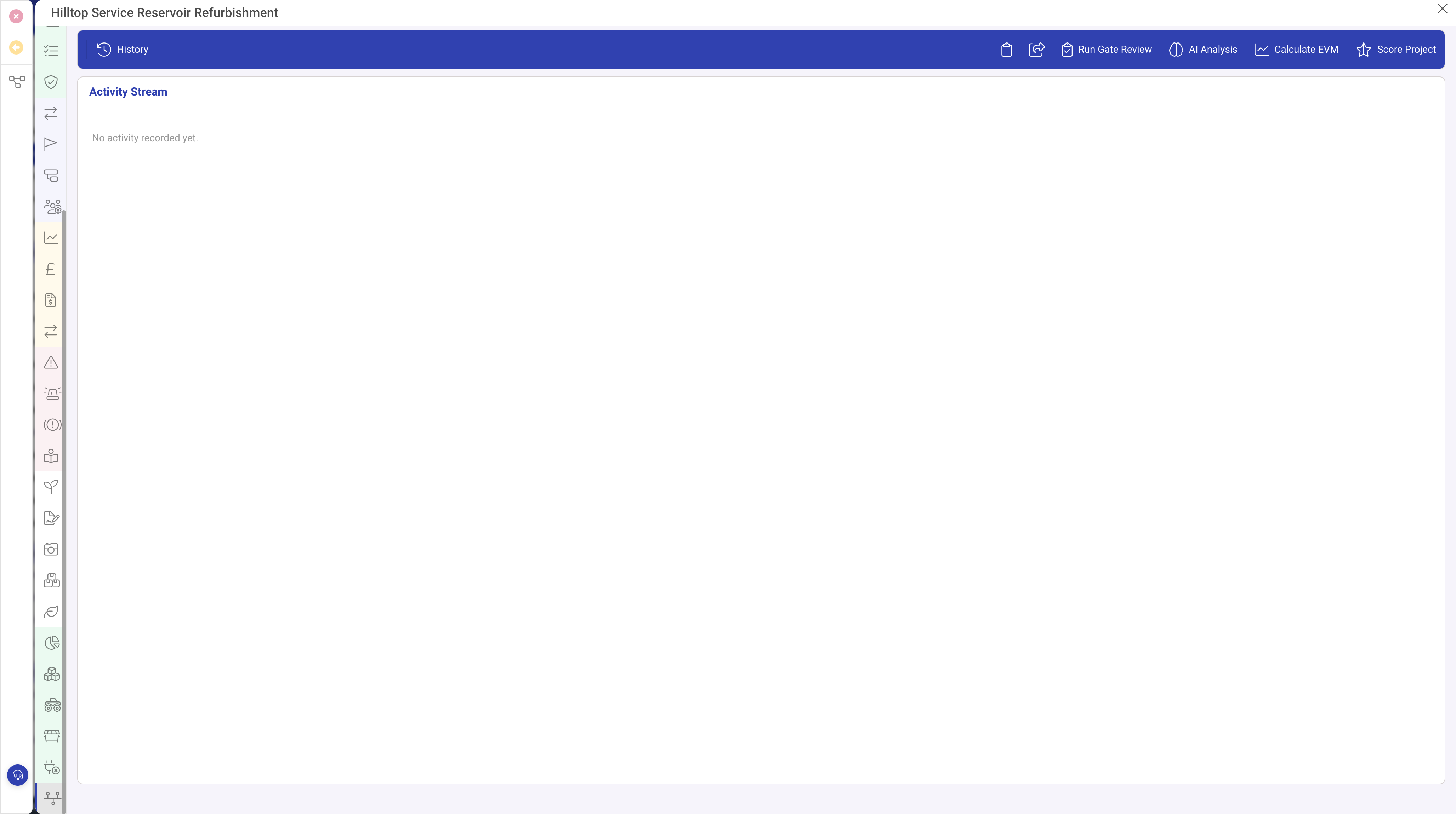
Notes
The Notes row type displays a timeline where users can add comments and view the conversation history for a record. Each note entry shows the author, timestamp, and content.
Notes Properties
| Property | Required | Description |
|---|---|---|
| Type | Yes | Must be set to notes |
| Header | No | A heading displayed above the timeline. Defaults to a standard notes heading if not specified. |
| Height | No | An optional fixed height in pixels. When set, the timeline area has a scrollable container of this height. |
How Notes Work
- Users type a message in the input area at the bottom of the timeline
- Submitting a note adds it to the timeline with the current user's name and the current date and time
- Notes are displayed in reverse chronological order (newest first)
- All users with access to the record can view and add notes
Activity Stream
The Activity Stream row type is similar to Notes but provides a richer timeline that can include system-generated entries alongside user comments. This makes it suitable for tracking not just manual comments but also automated events and status changes.
Activity Stream Properties
| Property | Required | Description |
|---|---|---|
| Type | Yes | Must be set to activitystream |
| Header | No | A heading displayed above the timeline. |
When to Use Each
| Use Case | Recommended Type |
|---|---|
| Simple user comments and discussion | Notes |
| Mixed user comments and system events | Activity Stream |
| Audit trail with automated entries | Activity Stream |
| Quick note-taking on records | Notes |
Best Practices
- Place notes or activity streams on their own dedicated panel (tab) named "Activity" or "Notes" to keep them separate from data entry forms
- Alternatively, place them in a column alongside form sections on the main panel for quick access
- Use a full-width (100%) column for the best reading experience
- Consider the height property if you want to keep the timeline compact within a busy layout