Overview
A well-branded portal builds trust and provides a professional experience for your users. DemandFlow lets you customise several aspects of your portal's appearance so it looks and feels like a natural extension of your organisation.
Accessing Appearance Settings
Open your portal in the portal settings area. The appearance options are grouped together in the Appearance section of the portal editor.
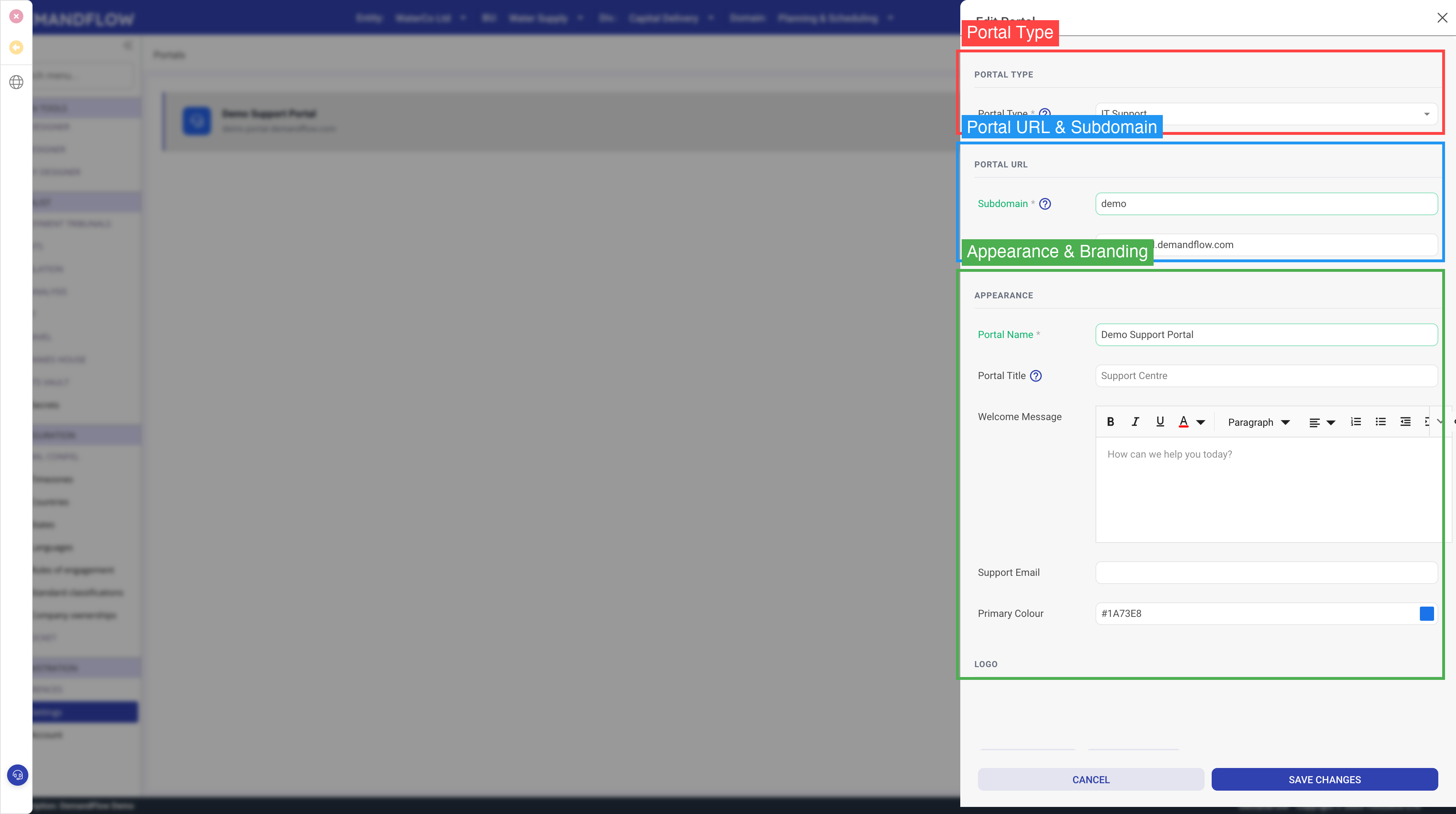
Portal Name
The portal name appears in the header of your portal website. It should be recognisable to your users. Examples:
- "Acme Support Centre"
- "WaterCo Customer Help"
- "IT Service Desk"
Portal Title
The portal title is the main heading displayed on the portal's homepage, typically in a large, prominent font. This is the first thing visitors see when they arrive. Use it to welcome users or describe the portal's purpose:
- "How can we help you today?"
- "Welcome to WaterCo Support"
- "Find answers and get help"
Welcome Message
The welcome message (also called the portal description) appears below the title on the homepage. It supports rich text formatting, so you can include:
- Paragraphs of introductory text
- Links to important resources
- Bulleted lists of available services
- Formatted text with bold, italic, and headings
Use the welcome message to orient visitors and guide them toward the right action — whether that is searching the knowledge base, submitting a ticket, or browsing the service catalog.
Primary Colour
The primary colour controls the portal's visual theme, including:
- The header bar background
- Button colours
- Link highlights and accents
- Category card borders
Enter a hex colour code (e.g. #1a73e8 for blue, #0D7377 for teal) that matches your organisation's brand. If you do not set a colour, a default blue is used.
Logo
Upload your organisation's logo to display it in the portal header. The logo appears alongside the portal name and gives the portal a professional, branded appearance.
Logo Guidelines
- Use a PNG or SVG file for best quality
- A transparent background works best against the coloured header bar
- Aim for a logo that is clear and legible at a small size (the header displays it at a compact size)
- You can remove the logo at any time using the Remove logo button
Support Email
Enter a support email address that is displayed on the portal. This gives users an alternative way to contact your team if they prefer email over submitting a ticket through the form. The email address is shown as a clickable link on the portal.
Tips for Effective Branding
- Be consistent — use the same logo, colours, and language that your users see in other communications from your organisation
- Keep the title short — one clear sentence works better than a paragraph in the title position
- Use the welcome message for detail — save longer explanations, links, and lists for the description rather than cramming them into the title
- Test the colour — make sure your chosen primary colour is dark enough for white text to be readable on the header bar
- Preview your portal — visit your portal URL after making changes to see how it looks to your users