Most patents do not live alone. A single invention often produces a family of related filings: the original priority application, a PCT, national-phase applications, continuations, divisionals, continuations-in-part and so on. Grouping them into a family keeps them connected so you can see the whole picture in one place.
A family is essentially a header record that holds the common priority details, plus a list of the member patents. Each member still exists as a full patent record in its own right.
When to create a family
- You file a continuation, divisional or continuation-in-part of an existing patent.
- You file the same invention in multiple jurisdictions and want to see them as a group.
- You want to make decisions (abandonment, licensing, renewal) across the whole group rather than one patent at a time.
You do not need a family for every patent. Keep it simple: a patent that has no related filings does not need a family.
Create the family
Go to Patents > Families.
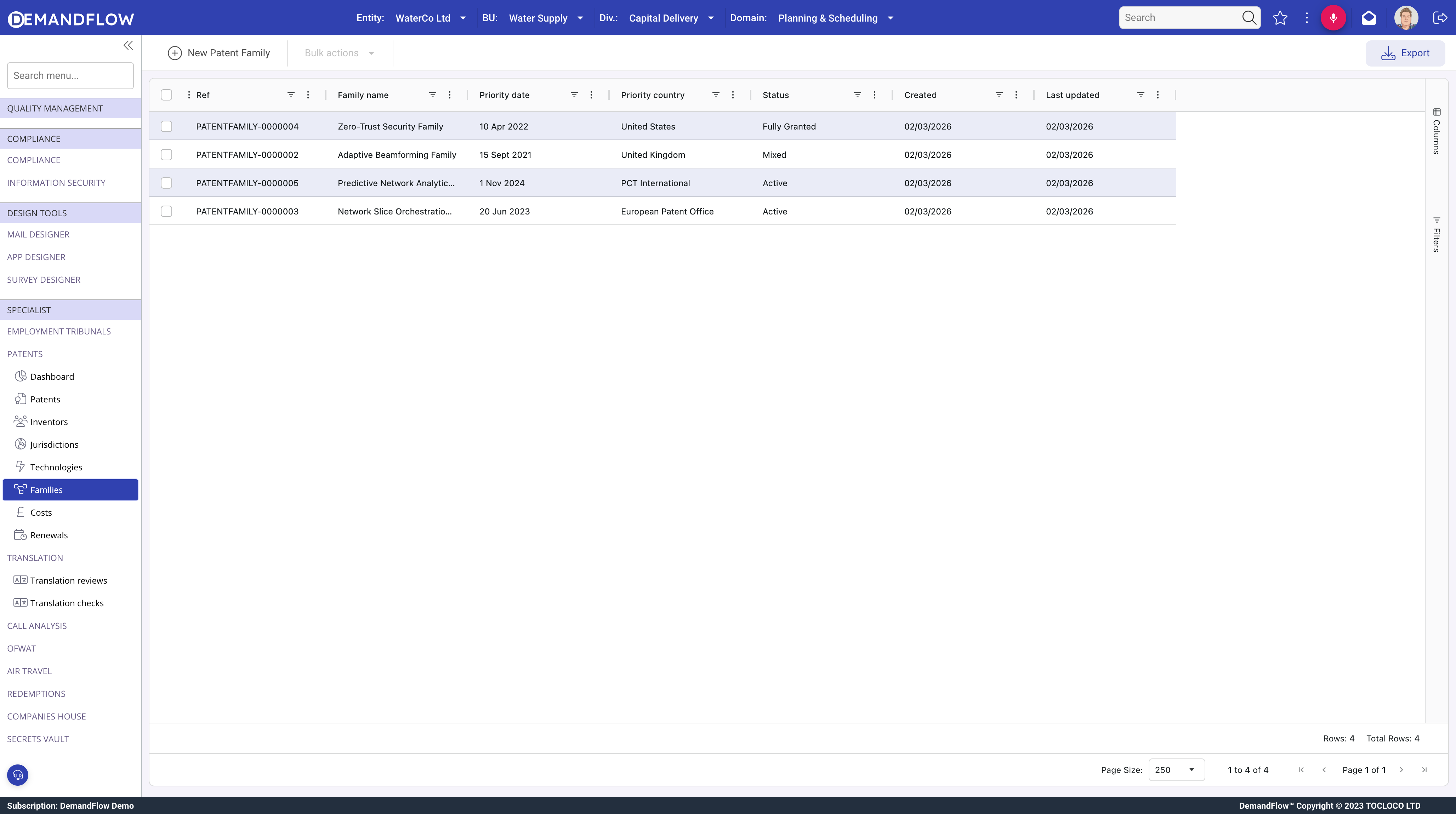
- Click New Patent Family in the toolbar.
- Give the family a clear Name, usually the title of the priority invention. For example Adaptive Beamforming Family.
- Enter the Priority date: the earliest filing date that all members claim priority from.
- Enter the Priority country: where that priority filing was made.
- Enter the Priority application number: the application number of the priority filing.
- Set the Status: Active while any member is still live, Closed once the whole family has expired or been abandoned.
- Save.
Add patents to the family
There are two ways to link a patent to a family:
- From the patent: open the patent, and on the General panel use the Patent family lookup to pick the family. This is the simplest route when you already have the patent open.
- From the family: open the family and use the related patents list to add existing patents. Useful when you are setting up a family for a group of patents that already exist.
Repeat until every member of the family is linked. Remember to include the original priority filing, any PCT, any national-phase applications, and any continuations or divisionals.
Using the family view
Open a family to see every member patent at a glance: their statuses, their jurisdictions, their grant dates. This is the right place to make portfolio-level decisions. For example, if you decide to abandon a family entirely, you can open each member from the family and set its status and renewal schedule accordingly.
Because each member is still a full patent record, all the detail (applications, claims, inventors, costs, renewals) stays where it belongs.
Tips
- Name the family after the invention, not after any particular jurisdiction. That way it still makes sense when the family grows beyond its original office.
- If the family is known by a particular code internally (for example an RDC or IDN number), include it in the family name or description so staff recognise it.
- Set the family's Status to Closed rather than deleting it once all members have lapsed. It is useful history.
What to do next
You now have the full patent-management toolkit in hand. Use the overview to remind yourself where each activity sits, and come back to any of the specific guides whenever you need a step-by-step refresher.