The Patents dashboard is the best place to land every morning if you manage a patent portfolio. It pulls key numbers from every patent, jurisdiction application, cost and renewal record in one view, so you can see at a glance where things stand and what needs attention.
Open it from Patents > Dashboard in the sidebar.
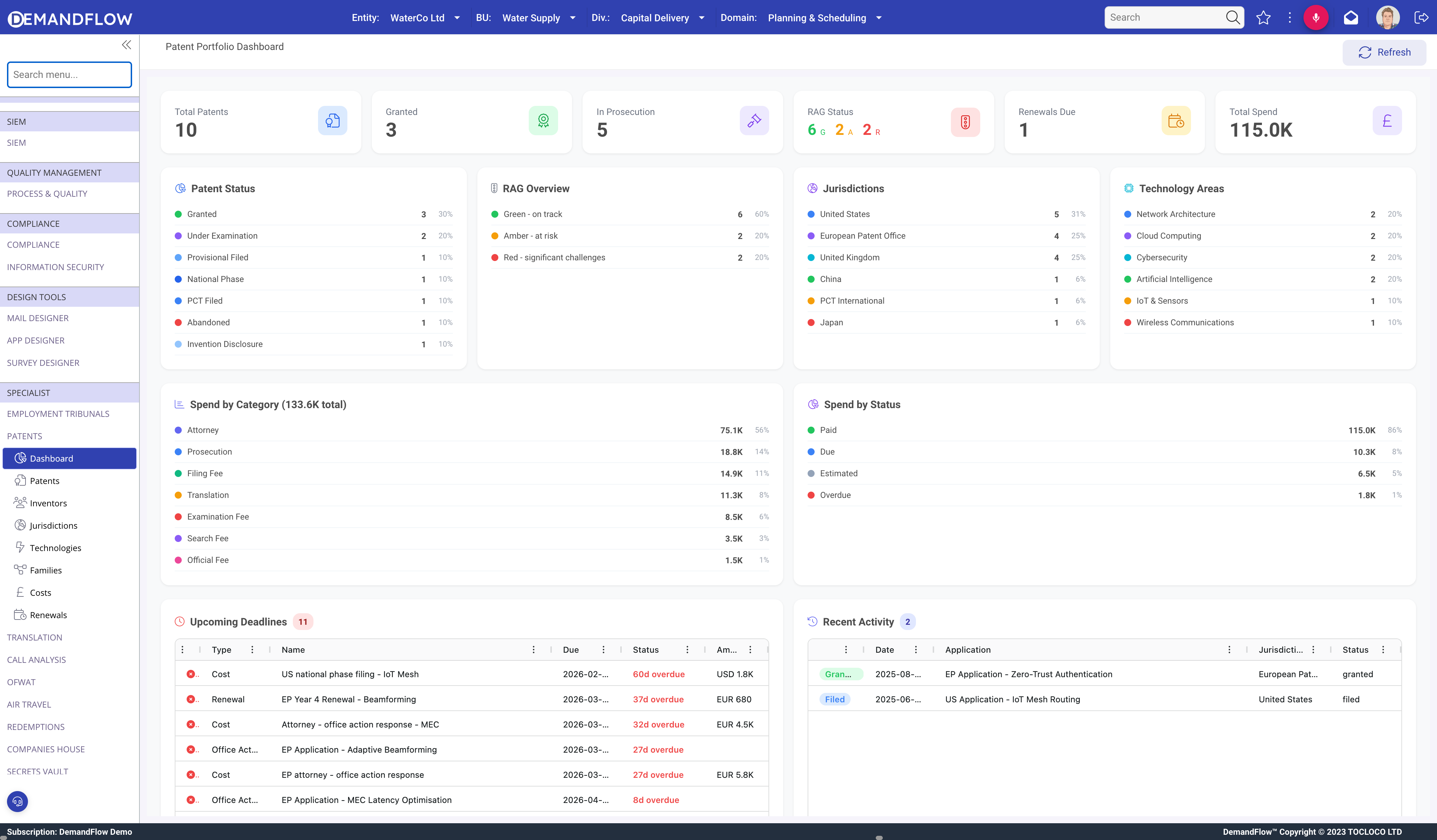
Top-line KPIs
The six tiles along the top give you the headline numbers for the whole portfolio:
- Total Patents: every patent record in the portfolio, regardless of status.
- Granted: patents that have been granted in at least one jurisdiction.
- In Prosecution: patents actively being pursued, including provisional, PCT, national phase and under examination.
- RAG Status: the count of patents at each RAG level, so you can see how many are on track, at risk or in trouble without opening anything.
- Renewals Due: renewals scheduled in the near term that still need to be paid.
- Total Spend: the running total of all cost records linked to patents in the portfolio.
Patent status breakdown
The Patent Status panel lists every lifecycle status and the number of patents currently at each one: Invention Disclosure, Provisional Filed, PCT Filed, National Phase, Under Examination, Granted, Abandoned and so on. Use this to spot bottlenecks. A long queue sitting in Provisional Filed might mean priority dates are being lost. A pile in Under Examination might suggest prosecution is slipping.
RAG Overview
The RAG Overview panel complements the KPI tile with the full breakdown: green (on track), amber (at risk) and red (significant challenges). Use it alongside the Patent Status panel for a quick health read on the portfolio.
Jurisdictions
The Jurisdictions panel counts patents by their primary jurisdiction: United States, European Patent Office, United Kingdom, PCT International, Japan and any others you have used. This answers where are we actually filing? in one glance and is useful for aligning the portfolio with commercial priorities.
Technology Areas
The Technology Areas panel counts patents by the technology category you assigned on the patent record: Network Architecture, Cloud Computing, Cybersecurity, Artificial Intelligence, IoT & Sensors, Wireless Communications and so on. Use it to check that your filings cover the tech areas the business actually cares about, and to see where you might be overexposed.
Spend by Category
The Spend by Category panel breaks down cumulative patent spend by cost type: attorney fees, prosecution, filing fees, translation, examination fees, search fees and official fees. Each category shows the total and its percentage of overall spend, making it easy to see where the money actually goes. For most portfolios, attorney fees dominate and it is useful to have that confirmed in the data.
Spend by Status
The Spend by Status panel aggregates cost records by their payment status: Paid, Due, Estimated and Overdue. If the Overdue figure is non-zero, treat it as the single most urgent item on the dashboard: somewhere a fee has slipped past a deadline and the patent may be at risk. Estimated gives you a view of forward cost that has not yet been invoiced.
Upcoming Deadlines
The Upcoming Deadlines table lists every fee and office action due in the near term, pulled from cost and renewal records. Columns include the type, item name, due date, status and amount. Overdue items are flagged clearly. Work top-down through this list to make sure nothing falls off.
Recent Activity
The Recent Activity table shows the most recent jurisdiction application events: grants, filings, status changes. Use it to keep tabs on prosecution progress without having to open each patent.
Tips for getting the most out of the dashboard
- Keep your patent RAG values up to date. The dashboard is only as useful as the signals on each underlying record.
- Log costs as invoices arrive, not when they clear. That keeps Spend by Status honest and makes Overdue meaningful.
- Set renewal records for the next five years after grant so Renewals Due and Upcoming Deadlines always have a realistic horizon.
- Treat anything in the red RAG count as a weekly review item rather than a one-off flag.
What to do next
Once you have patents and related records in the system, the dashboard becomes your starting point every time. When the numbers surprise you, drill in through Patents > Patents, Costs or Renewals to find the underlying record.