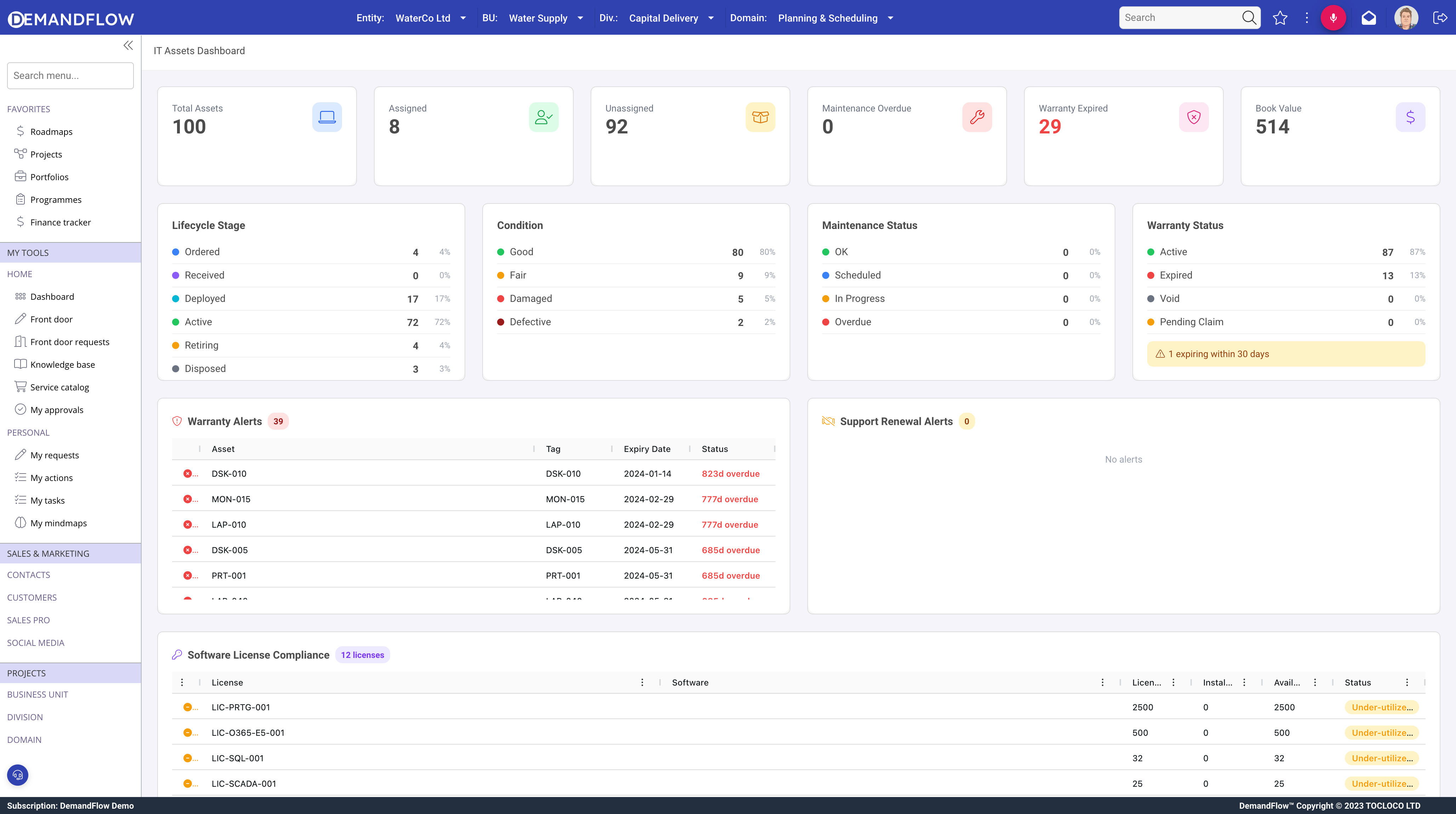
The IT assets dashboard (ITAM > IT assets dashboard) provides fleet-wide visibility in a single screen.
Summary cards
Six cards across the top show headline numbers:
- Total Assets: complete count of assets under management.
- Assigned: assets currently allocated to a user or department.
- Unassigned: assets in stock or awaiting allocation.
- Maintenance Overdue: assets past their scheduled maintenance date.
- Warranty Expired: assets whose warranty end date is in the past.
- Total Book Value: sum of current book values across the fleet.
Breakdown charts
Four charts show distribution breakdowns:
- Lifecycle Stage: how many assets sit in each stage.
- Asset Condition: distribution across condition ratings.
- Maintenance Status: split by maintenance state (Current, Due Soon, Overdue, Not Scheduled).
- Warranty Status: proportion with active, expiring, or expired warranties.
Warranty Alerts grid
Lists assets with expired or soon-to-expire warranties, sorted by urgency. Click any row to open the asset record.
Support Renewal Alerts grid
Surfaces support agreements approaching their renewal date.
Software Licence Compliance grid
Compares licensed quantities against installed counts for each software product:
- Licensed: total entitlement quantity from licence records.
- Installed: count of active installations across the fleet.
- Available: the difference. Negative means over-deployed.
Tips
- Check the dashboard at least weekly.
- Act on warranty alerts before coverage lapses.
- Use the compliance grid to identify unlicensed software.