Software version records track the releases running on each deployed platform. Each record captures the version number, lifecycle dates, and full release management details including planning, testing, compliance, and deployment.
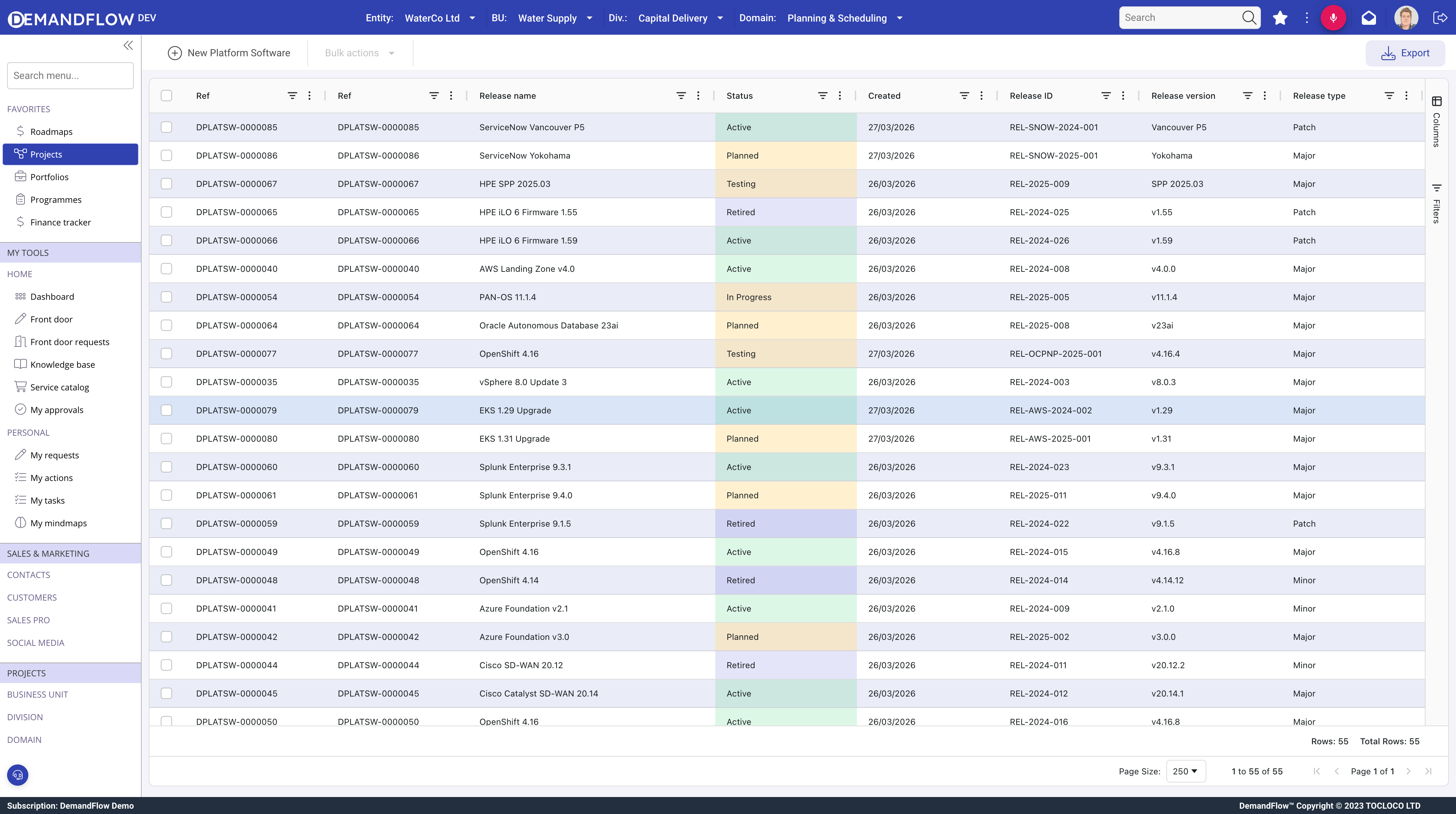
Creating a software version
- Navigate to Platform Management > IT Platforms > SW versions.
- Click New.
- Enter a Name (e.g. "S/4HANA 2023 FPS02") and Version (e.g. "2023.02").
- Release ID: an internal reference (e.g. "REL-2025-001").
- Type: Major, Minor, Patch, or Hotfix.
- Status: New, Testing, Planned, In Progress, Active, Delayed, Rolled back, or Retired.
- Deployed platform (required): link to the deployed platform this version runs on.
- Save.
Lifecycle dates
Four dates track the vendor support timeline for each version:
- General Availability (GA): when the version was released by the vendor.
- End of Life: when the vendor stops all updates.
- End of Sale: when the vendor stops selling this version.
- End of Support: when the vendor stops providing support and patches.
All lifecycle dates are flagged when they pass, so overdue items are visually highlighted in the grid and on the record. These dates drive the SW timeline and upgrade planning.
Prerequisites
The Prerequisites field is a multi-select lookup to other software version records. This captures version dependency chains: for example, a patch may require a specific minor version to be installed first. The prerequisite chain is visualised in a dedicated panel.
The Release panel
The Release panel provides comprehensive release management fields organised into sections:
- Plan: planned and actual deployment dates, rollback availability, rollback plan URL.
- Change and impact: new features, bug fixes, security patches, impacted services, risk level, approval status.
- Testing and validation: test status, test coverage percentage, UAT completion, sign-off, performance metrics.
- Compliance and audit: regulatory check status, audit references, incident reports.
- Deployment details: release notes URL, script location, configuration changes, dependencies.
- Post-deployment monitoring: monitoring status, feedback score, issues encountered.
This level of detail reflects the reality that platform upgrades are high-risk operations requiring formal planning, testing, and approval.
The SW timeline
Navigate to Platform Management > IT Platforms > SW timeline to open the timeline visualisation.
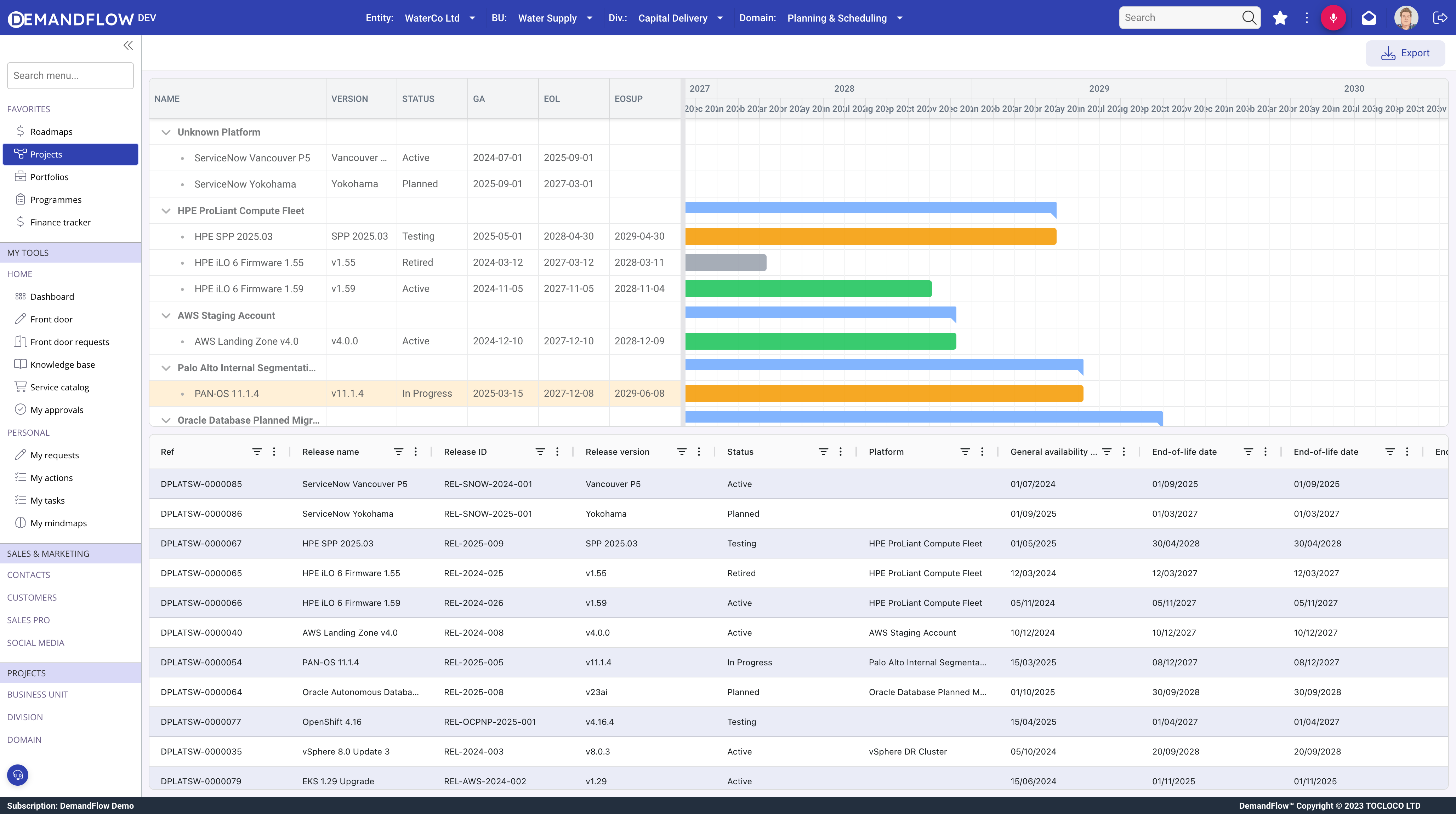
The timeline shows all software versions across all deployed platforms on a single view. The upper section displays a visual timeline chart with version bars colour-coded by status. The lower section shows a grid with the same data in tabular form.
Use the timeline to:
- Spot upcoming end-of-life and end-of-support dates across your platform estate.
- Identify platforms running versions that are already past end of support.
- Plan upgrade schedules by seeing which platforms need attention first.
- Export the data for reporting and governance reviews.
Tips
- Record lifecycle dates as soon as the vendor publishes them. The earlier you know about an upcoming end of support, the more time you have to plan the upgrade.
- Use the Release panel fields even for minor patches. A lightweight entry (planned date, actual date, status) takes seconds and builds a valuable audit trail.
- Review the SW timeline monthly as part of your platform governance routine. It surfaces risk that individual platform records cannot show on their own.
- Link prerequisites when version dependency chains exist. This prevents failed upgrades caused by missing intermediate versions.