Overview
DemandFlow provides three field types for working with dates and times:
- Date (
date) — a date picker for selecting a date without a time component - Date/Time (
datetime) — a combined date and time picker - Timestamp (
timestamp) — a read-only display of a date/time value
Date Field
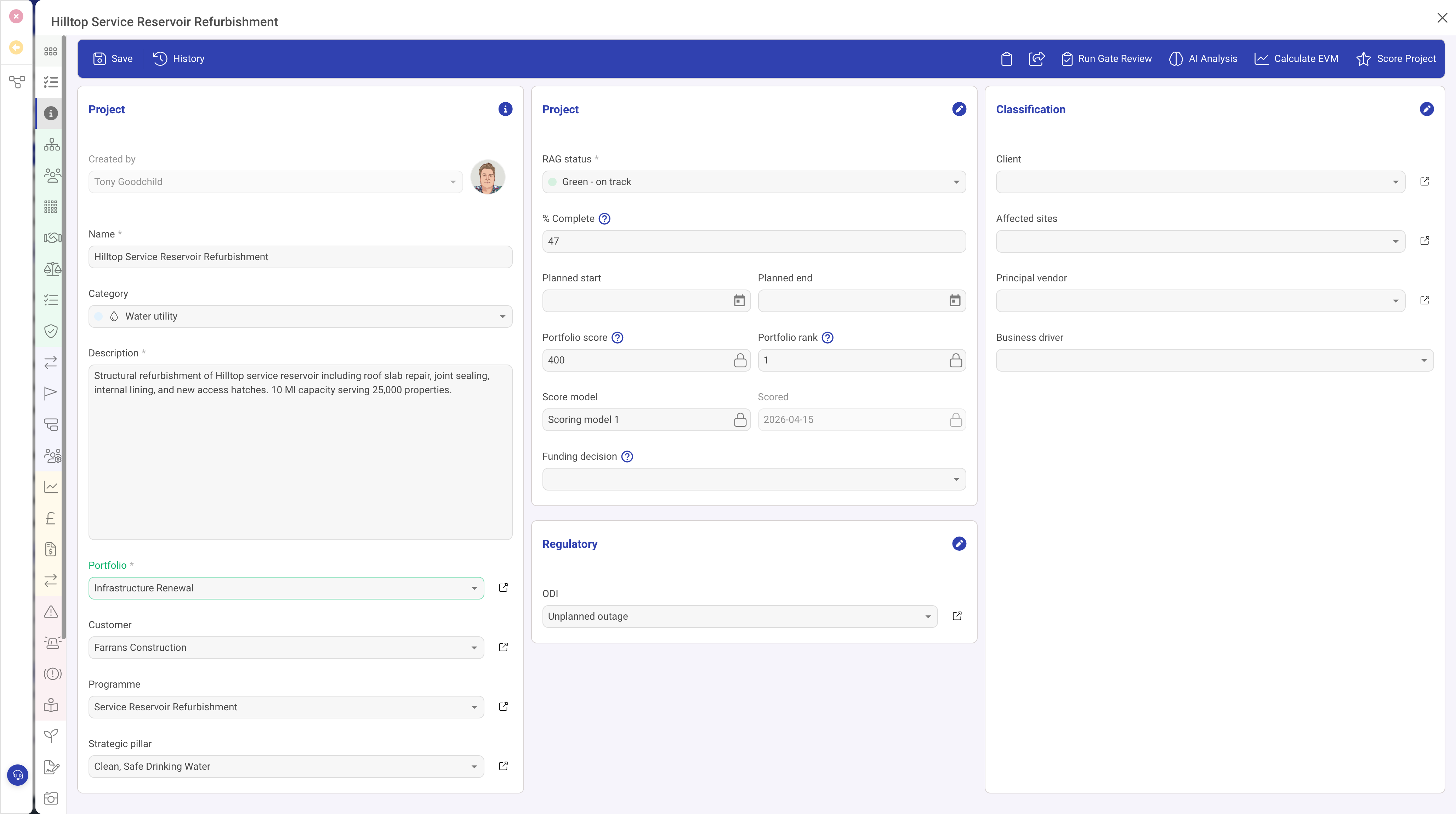
The Date field type provides a calendar-based date picker where users can select a specific date.
Date Properties
| Property | Required | Description |
|---|---|---|
| ID | Yes | The field identifier. |
| Type | Yes | Must be set to date |
| Name | Yes | The display label. |
| Width | No | The percentage width. |
| Required | No | When true, a date must be selected. |
| Read Only | No | When true, the date is displayed but cannot be changed. |
| Past Check | No | When true, a visual warning is shown if the selected date is in the past. Useful for deadline and due date fields. |
| Grid | No | When true, appears as a column in list views. |
| Help | No | Tooltip text. |
| Visibility | No | A condition controlling visibility. |
Date/Time Field
The Date/Time field type adds a time selection component alongside the date picker, allowing users to specify both a date and a time of day.
Date/Time Properties
The Date/Time field supports all the same properties as the Date field, with the addition of time selection in the picker interface. Use this when the time of day is significant (e.g. meeting times, scheduled events, deadline timestamps).
Timestamp Field
The Timestamp field type is a read-only display that shows a date/time value in a human-friendly format. It is typically used for system-generated values such as "Created Date" or "Last Modified Date" that should not be edited by users.
Duration Between Dates
Number fields can be configured with a Duration Between property that references two date fields. When configured, the number field automatically calculates and displays the duration (in days) between the two specified dates. This is useful for showing elapsed time, project duration, or time remaining.
Use Cases
| Field Type | Example Uses |
|---|---|
| Date | Start date, end date, due date, date of birth, effective date |
| Date/Time | Meeting start time, event schedule, appointment times |
| Timestamp | Created date, last modified date, approval date, system events |
Best Practices
- Use Date (not Date/Time) when the time component is not meaningful
- Enable Past Check on deadline or due date fields to help users spot overdue items
- Use Timestamp for system-generated dates that should not be manually edited
- Set date fields to a width of 50% or less, as they do not need full-width display